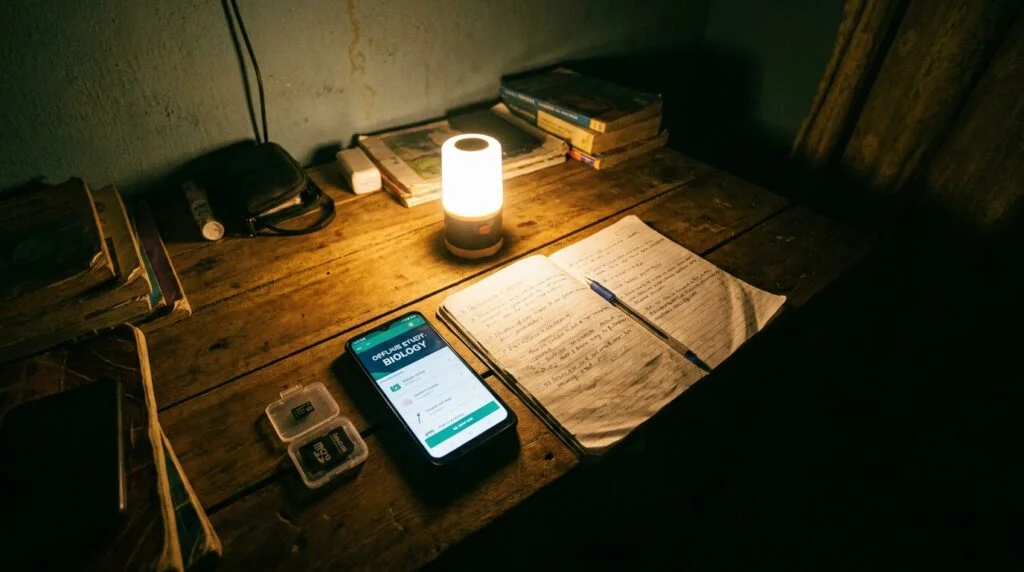

You open your data plan app and see zero balance three days before a test. Every Nigerian student and every parent paying for a phone plan has felt that specific kind of panic, the one where NEPA takes light, your data finishes, and the only WiFi within reach belongs to a cafe that closed an hour ago. This guide gives you a complete, priced, offline study setup that keeps working the moment you switch your phone to airplane mode, built from real tools that cost little or nothing beyond what you spend once.
My name is Amakor Vitalis. I have spent the last five years building and testing low-cost digital learning setups for students in areas with weak network coverage, from Kogi to Cross River. I am not writing this from a place of theory. I have loaded ZIM files on cracked-screen Tecno phones, watched SD cards fail mid-download, and argued with shop owners who tried to sell 32GB cards labeled as 128GB. What follows is what actually works, not what looks good in a tech blog written by someone who has never sat with a student trying to revise Chemistry with zero bars of network.
Why “Offline-First” Beats “Data-Saving” Advice
Most advice you find online about studying cheaply in Nigeria tells you to “use data-saving mode” or “download videos when you get free WiFi.” That advice treats network access as the default and offline as the backup plan. It’s backward. If you build your study kit assuming the network will fail (because it will), you stop wasting airtime chasing a browser that keeps buffering and start using tools that were built to work without a signal in the first place.

The generic advice also tends to recommend apps that claim to be “offline” but actually still ping a server to check login status, load ads, or verify a subscription. A lot of students download what they think is an offline app, put the phone in airplane mode during a real blackout, and find the app refuses to open because it can’t reach its login server. That single detail, whether an app truly works air-gapped, is the difference between a study kit that helps you and one that just wastes storage.
The Complete Kit: What You Actually Need
Here is the full kit broken into four parts. Every part below has a real function, and none of them is optional if you want genuine offline coverage rather than a partial one.
| Component | What It Does | Realistic Price Range (Naira) |
|---|---|---|
| Budget Android phone (or old phone you already own) | Runs every offline app and stores your files | ₦90,000 to ₦150,000 new; ₦25,000 to ₦60,000 UK-used or fairly used |
| MicroSD card, 64GB to 128GB, genuine | Holds your ZIM files, past questions, and saved videos | ₦6,000 to ₦15,000 |
| Kiwix app + downloaded ZIM packs | Offline encyclopedia and subject libraries | Free (app and content), only data cost is the one-time download |
| Past-question CBT app (JAMB/WAEC/NECO) | Practice questions, timed mock exams, explanations, all offline after install | Free to download; some charge a one-time activation fee of ₦500 to ₦3,000 |
| Kolibri app (optional but recommended) | Offline lesson videos, exercises, and simulations across subjects | Free |
That table alone is your shopping list. You do not need a fancy phone. You need one that can hold a memory card and has enough internal space to install two or three apps comfortably.
Picking the Right Budget Android Device
You don’t need a flagship phone to run any of this. Here’s what actually matters when you’re choosing:
- RAM: 3GB minimum, 4GB is comfortable. Kiwix and CBT apps are light, but Android itself needs breathing room. A 2GB phone will lag badly once you add a browser and a WhatsApp in the background.
- Storage: 64GB internal minimum, with a microSD slot. Many of the cheapest phones only have 32GB internal, and once the operating system takes its share, you’re left with almost nothing. A phone with SD card support lets you keep your ZIM files and videos separate from the system storage, so app updates don’t crash because of low space.
- Battery: 5000mAh or higher. If you’re studying somewhere with unreliable electricity, battery life matters more than camera quality.
- Android version: 10 or newer if you can get it, mainly because Kiwix and Kolibri run more smoothly and get security patches for longer.

New sealed phones with a warranty from brands like Tecno, Infinix, and Itel currently start around ₦90,000 and climb toward ₦150,000 for something with 6GB RAM and 128GB storage. If your budget genuinely cannot stretch that far, a well-inspected UK-used or fairly-used phone in the ₦25,000 to ₦60,000 range will run this entire kit without trouble, since none of these apps demand serious processing power. The one thing I’d caution against is buying an unbranded “China phone” advertised far below ₦20,000. I’ve seen too many of these fail to hold a charge past six months, which defeats the whole point of an offline kit that’s supposed to outlast your data plan.
Loading Real Offline Content: What to Download and How Much Space It Takes
This is the part most guides skip. They tell you to “download offline content” without telling you which content, where to get it, or how big it is. Here’s the specific breakdown.
1. Kiwix and ZIM Files (Your Offline Encyclopedia)
Kiwix is a free, open-source reader built specifically to open compressed offline archives called ZIM files. It was built by a nonprofit team and doesn’t show ads or collect your data, and it runs on basically any Android phone from version 6 upward. Once you install the Kiwix app and download a ZIM pack, that content lives entirely on your phone. No login, no server check, nothing to break in airplane mode.
The size of your download depends on which version of Wikipedia (or which subject pack) you choose:
| ZIM Pack Type | What’s Included | Approximate Size |
|---|---|---|
| Wikipedia “mini” (all articles, text only) | Introduction and infobox of every article | Around 12GB for full English Wikipedia |
| Wikipedia “nopic” (full text, no images) | Complete article text, no pictures | Roughly 11 to 15GB depending on edition |
| Wikipedia “maxi” (full text with images) | Everything, including photos and diagrams | Can run past 100GB for the complete English edition |
| Subject-specific packs (Chemistry, Biology, Computer Science, etc.) | Focused article sets on one topic | Usually under 1GB to a few GB each |
| Wiktionary (dictionary) | Word definitions and etymology | Under 1GB |
My honest recommendation for a student on a budget phone with a 64GB card: skip the full “maxi” Wikipedia. It’s overkill for exam prep and eats storage you need for other things. Go for the “nopic” full edition if your card has room, or pick two or three subject packs relevant to your syllabus if space is tight. You lose the pictures, but you keep every word of every article, which is what actually matters when you’re reading up on a topic the night before a test.
2. Past-Question and CBT Practice Apps
For JAMB, WAEC, and NECO preparation, there are several apps built by Nigerian companies that store thousands of past questions locally on your device after one download. Apps like the Myschool CBT app, O3Schools, Edubaloo, and Class54 all let you practice full mock exams, see explanations, and track your score history without needing a live connection once the questions are downloaded.
A word of caution from experience: some of these apps require an internet connection the first time you open them, to activate your license or pull an update, even though later use is genuinely offline. Do this activation step while you still have data or WiFi, then confirm the app opens and loads questions with your WiFi turned off before you consider your kit complete. Storage-wise, these apps with their full question banks typically take up somewhere between 200MB and 1.5GB, small compared to your ZIM files.

3. Kolibri or Similar Offline Lesson Libraries
Kolibri is a free, open-source learning platform built by a nonprofit called Learning Equality. It works completely offline once you’ve loaded content into it, and it includes video lessons, exercises, simulations, and books across a wide range of subjects. Unlike a raw downloaded video file sitting in your gallery, Kolibri organizes lessons by subject and tracks what you’ve completed, which makes revision more structured. It also lets devices share content with each other over a local WiFi network with no internet required at all, useful if a classmate already has the content loaded and you don’t want to burn your own data downloading it again.
Storage for Kolibri depends entirely on which “channels” (subject packs) you import. A handful of core secondary school subjects with video lessons can range from 2GB to 10GB. Start with the two or three subjects you’re weakest in rather than trying to load everything at once.
4. Saved Past Lesson Videos
If you already have YouTube videos, teacher recordings, or downloaded tutorial videos, keep them in a dedicated folder on your SD card, not your internal storage. A single hour of decent-quality video (720p) typically runs 300MB to 700MB depending on compression. If you’re saving many of these, this is usually the single biggest storage consumer in your whole kit, bigger than your ZIM files in most cases. Be selective. Save videos that explain the exact topics your syllabus covers, not everything you come across.
Total Storage Budget: A Realistic Example
Here’s what a genuinely useful, non-bloated kit looks like on a 64GB card:
| Content | Space Used |
|---|---|
| Wikipedia “nopic” full English edition | ~12GB |
| 4 to 5 subject ZIM packs (Chemistry, Biology, Physics, English literature notes) | ~4GB |
| Myschool or similar past-question app with full question bank | ~1GB |
| Kolibri with 3 core subjects loaded | ~6GB |
| 15 to 20 saved lesson videos | ~10GB |
| Total | ~33GB, leaving over half the card free for personal files |
If your card is only 32GB, drop the full Wikipedia edition for two or three subject-specific ZIM packs instead, and keep your saved videos to the ones you’ll actually rewatch.
The Assembly Checklist: Build Your Kit in This Order
Follow this sequence. Doing it out of order (like downloading huge files before confirming your card even works) is the most common way students waste their data.
- Choose and test your device. Confirm the phone boots properly, the SD card slot reads a card, and the battery holds a charge for at least a few hours of screen-on use.
- Buy and format your microSD card. Buy from a shop you trust, not a random roadside vendor, since fake cards that report false capacity are common. Format it as “portable storage” so your phone treats it as external, separate from internal memory.
- Install Kiwix from the Play Store while you have network access.
- Download your chosen ZIM packs directly to the SD card if the app allows you to set that storage location. Do this on a strong WiFi connection if you can find one, since these are large files.
- Install your past-question CBT app, complete any one-time activation step while online, then close your data connection and reopen the app to confirm the questions load without a network.
- Install Kolibri (optional) and import two or three subject channels relevant to your exams.
- Move or download your saved lesson videos onto the SD card in a clearly labeled folder.
- Run the airplane-mode test (below) before you consider the kit finished.
The Airplane-Mode Test: Confirm It Actually Works
This step matters more than any other on this list, because it’s the one most students skip, and it’s the one that catches every app that secretly needs a server ping to function.
- Turn on airplane mode.
- Open Kiwix and search for a random topic. Confirm the article loads with full text.
- Open your past-question app and start a mock exam. Confirm questions load and you can submit answers and see your score.
- Open Kolibri (if installed) and play a lesson video from start to finish.
- Open your saved video folder and play one video fully.
If every one of those steps works with the network switched off, your kit is genuinely offline-first. If any step fails, go back and check whether that specific app needs a one-time online activation you missed, or whether the content download actually completed.
Being Honest About the Limits of an Offline Kit
I won’t pretend this setup replaces a live connection completely, and any guide that tells you it does is not being straight with you. Here’s what an offline kit cannot do:
- No live updates. Your Wikipedia content, past questions, and lesson videos are frozen at the point you downloaded them. If JAMB changes its syllabus or WAEC releases a new past-question set, your kit won’t know until you go online again.
- No new practice questions until your next sync. If you’ve worked through the entire question bank in your CBT app, you’re done until you reconnect and check for an update.
- No real-time clarification. You can’t ask a live tutor a question or search a brand-new topic that wasn’t included in your downloaded content. You’re working from what you saved, not the open internet.
- Storage limits mean some tradeoffs. You likely won’t have space for every subject, every past year’s questions, and hours of video all at once on a budget phone. You’ll need to rotate content occasionally.
None of this makes the kit less worth building. It just means you should treat it as your daily study base, not your only source of information forever.
The Monthly Re-Sync Habit
Because the kit is frozen content, build a simple monthly habit to keep it useful:
- Pick one day a month, ideally right after you’ve topped up data or found free WiFi (school, library, or a relative’s house), to check for updates.
- Update your CBT app first, since past-question apps often add newly released exam questions after each sitting.
- Check Kiwix’s built-in catalog for newer versions of your ZIM packs. You don’t need to redownload everything each month, just the packs tied to subjects you’re actively revising.
- Swap out videos you’ve already mastered for new ones covering topics you’re currently struggling with, rather than letting old videos pile up and eat storage.
- Delete what you no longer need. If you’ve finished revising a subject, remove its ZIM pack or video folder to make room for the next one.
Ten to fifteen minutes once a month is enough. This isn’t a daily task, and treating it as one will just burn data you don’t need to spend.
Common Mistakes Students Make Building This Kit
- Buying a card based on price alone. A ₦3,000 “128GB” card from an unverified seller is almost always fake and will corrupt your files partway through use. Buy from a shop that lets you test the card in front of them.
- Downloading the full “maxi” Wikipedia with images on a 32GB phone. It eats nearly all your space and leaves no room for past questions or videos, the things you’ll actually revise from daily.
- Skipping the airplane-mode test. Assuming an app is offline because it says so in the Play Store description, without ever actually confirming it, is how students find out mid-exam-week that their “offline” app needs a server ping to open.
- Never rotating content. Loading everything once and never updating it means you’re revising from a static snapshot months after new past questions or syllabus changes were released.
- Ignoring battery health. A kit that works perfectly offline is useless if your phone can’t hold charge through a full study session during a power outage.
Frequently Asked Questions
Do I need to pay for Kiwix or Kolibri? No. Both are free, open-source tools built by nonprofit organizations, and neither requires a subscription to use their downloaded content offline.
Can I use this kit on a basic phone without a memory card slot? You can install lighter subject-specific ZIM packs and a CBT app directly on internal storage if the phone has at least 32GB free, but a card slot gives you far more room to work with and I’d recommend prioritizing that feature when choosing a device.
Will my past-question app show me new WAEC or JAMB questions automatically? No. New questions get added to these apps only when the developer releases an update, which usually requires a network connection to download. This is exactly why the monthly re-sync habit matters.
Is it safe to download ZIM files or CBT apps from unofficial APK sites instead of the Play Store? Stick to the Play Store or the official Kiwix and Learning Equality websites where possible. Unofficial APK sites carry a real risk of bundled malware, and a corrupted or malicious file defeats the entire purpose of a trustworthy study tool.
How often should I completely refresh my offline content? Monthly for active past-question updates, and every school term or so for full ZIM pack refreshes, unless a specific syllabus change or new past-question release gives you reason to update sooner.
Bringing It All Together
A genuinely offline-first study kit isn’t about owning an expensive phone. It’s about choosing the right free tools, loading them properly before you need them, and testing that they hold up the moment your network disappears. Between a modest Android device, a properly formatted memory card, Kiwix, a past-question CBT app, and an optional Kolibri library, you can build a setup that costs a fraction of a year’s worth of data bundles and keeps working through every blackout and every zero-balance moment.
Build it once, test it with airplane mode on, and give it a short refresh once a month. That’s the whole system.
Have you tried building your own offline study setup, or run into an app that claimed to work offline but didn’t? Tell me what worked and what didn’t in the comments, I read every one and I’ll fold the real answers into future updates of this guide.
Discover more from EducationNGR
Subscribe to get the latest posts sent to your email.