
I spent an afternoon helping my cousin prep for her 2026 UTME registration, and I watched her try to resize a passport photo to some pixel spec she’d copied from a Google search. She never needed to. JAMB doesn’t take a photo upload from candidates at all. The camera at the CBT centre takes it for you, on the spot, the same morning you register.
That single fact changes how you should prepare. If you’ve been searching for “JAMB photo size in KB” or “JAMB passport upload dimensions,” you’re solving a problem that doesn’t exist in the current registration process. The real risk isn’t a rejected image file. It’s a mismatch between your NIN record and your O’Level certificate, a wrong SMS format to JAMB’s shortcode, or a botched O’Level upload weeks later on CAPS. Those are the things that actually stop registrations and delay admissions.
Key things to know before you head to a CBT centre
- JAMB does not accept a self-uploaded passport photograph for UTME or DE registration. The photo is captured by camera at the centre.
- Your fingerprints are captured live at the centre too. Neither the photo nor the fingerprints are files you prepare in advance.
- The one real document step is your O’Level result (WAEC, NECO, or NABTEB). At registration centres this is usually scanned from a physical copy. JAMB’s eFacility portal also lists a self-upload option for O’Level results, but no public file-size or format spec is attached to it.
- Your NIN is checked against the NIMC database by SMS, not uploaded as a file. Any mismatch between your NIN record and your school certificates is the single biggest cause of registration trouble.
- A profile code, once generated, cannot be changed. Get your NIN details right with NIMC before you send that SMS.
What you actually need to bring to the CBT centre
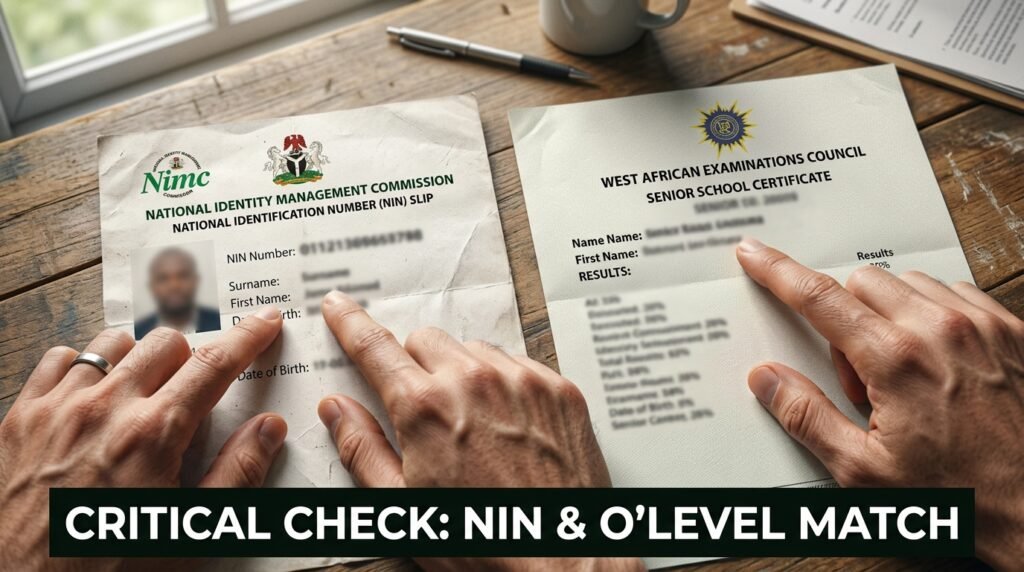
Forget file formats for a moment. Here’s the physical and digital checklist that matters on registration day.
- Your 11-digit NIN, already corrected at NIMC if anything was wrong
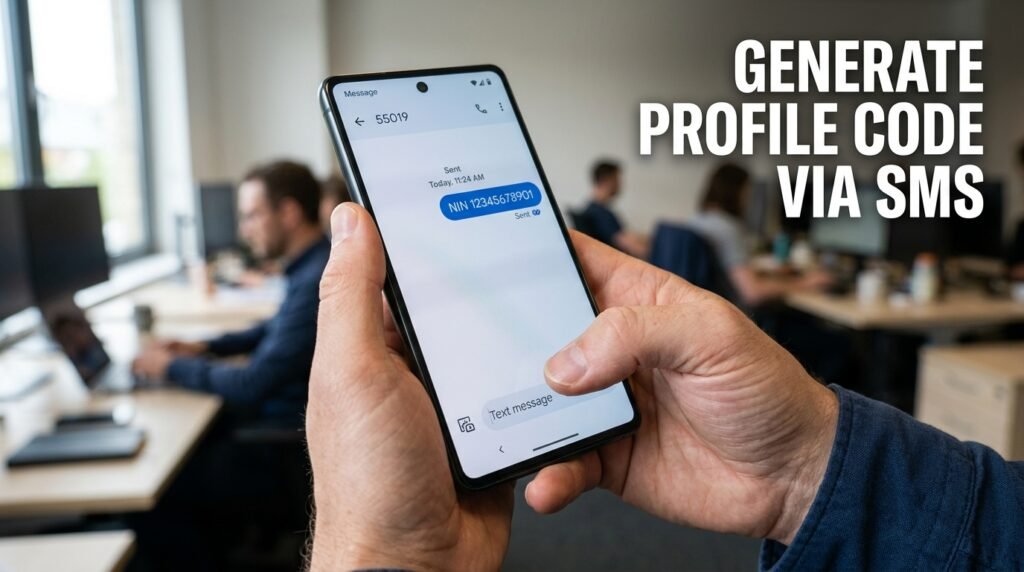
- The 10-digit profile code you got back by SMS after texting your NIN to 55019 or 66019
- Proof of e-PIN payment, or the e-PIN slip itself, bought from a bank, mobile money operator, or other JAMB-approved channel
- A physical copy of your O’Level result (WAEC, NECO, or NABTEB), or your “awaiting result” status if you haven’t sat the exam yet
- A valid means of identification, since some centres ask for one beyond your NIN slip
- Yourself, in person, for the live photo and fingerprint capture
Notice what’s missing: no photo file, no scanned passport image, no upload dimensions. That part of the process happens at the centre, on their equipment, not on yours.
Why the photo upload question doesn’t apply here
A lot of exam boards around the world do ask candidates to upload their own passport photo, with strict rules on file size, pixel width, and background colour. JEE Main and NEET in India work that way, and so does the US passport renewal portal. It’s a reasonable thing to expect, which is probably why so many people search for JAMB’s version of the same rule.
JAMB runs it differently. The registration process requires biometric capture (all ten fingers) and a photograph taken physically at the centre, and registration cannot finish until both are done. There’s no step where the system asks you to attach a photo file from your phone or laptop. If you show up with a printed photo expecting to hand it over, the centre will still need to take your photo themselves with their camera.
This matters for a practical reason. If you spend time before registration day formatting a passport photo to some size you found online, you’ve spent effort on a step that isn’t part of the process. Better to spend that time confirming your NIN details are correct, since that’s the part that can actually delay you.
The real document table: what’s required, where it’s handled, and what trips people up
This is the comparison that matters more than any file spec table. It lays out each requirement, where it gets processed, and the failure point tied to it.
| Requirement | Where it’s handled | Format you control | Common failure point |
|---|---|---|---|
| NIN verification | By SMS to NIMC’s database (55019 or 66019) | None; just the SMS text format | Wrong SMS command, or NIN not yet synced with NIMC |
| Profile code | Generated automatically after NIN SMS succeeds | None | Trying to use a profile code on a different phone number than the one that requested it |
| Passport photograph | Captured live by camera at the CBT centre | None; no file upload exists | Arriving expecting to submit a printed or digital photo instead of sitting for the live capture |
| Fingerprints (biometrics) | Captured live at the CBT centre | None | Damaged or unreadable fingerprints causing capture failure (rare, but centres are told to involve a JAMB office if it happens) |
| O’Level result | Scanned from a physical copy at the centre, or self-uploaded later through eFacility | Physical copy at the centre; digital copy if using eFacility | Names or dates that don’t match the NIN record exactly |
| Valid email and phone number | Entered during registration, tied to your profile | None | Reusing a number or email already linked to a different profile |
That fingerprint row deserves a second look, because it’s the one part of biometric capture that can actually go wrong through no fault of yours. If a candidate’s fingerprints won’t scan, official guidance says the centre should stop and refer the case to a JAMB office rather than push the registration through. If that happens to you, don’t let a centre talk you into skipping it. Go to the JAMB office directly.
The NIN mismatch problem, and why it costs more than a photo ever would
Here’s the part nobody searching for upload specs expects to be the real obstacle. JAMB pulls your biodata, meaning your name, date of birth, gender, and state of origin, straight from NIMC once you generate a profile code. Once that code is generated, none of that data can be edited inside JAMB’s system.
So if your NIMC record spells your name differently from your WAEC certificate, or has a different birth year, you’re stuck with whatever NIMC has on file unless you fix it first. Several JAMB guides for the 2026 cycle describe this as a multi-step correction at NIMC requiring a birth certificate or sworn declaration of age, and possibly a newspaper publication if the discrepancy is significant. Some sources mention a separate correction fee charged later through JAMB itself for date-of-birth fixes after the fact, in the range of a few thousand naira, though the exact figure depends on the year and the correction type, so check the current fee on JAMB’s own portal before assuming a number.
The fix is sequencing, not paperwork volume. Go to NIMC first. Confirm your name, birthdate, gender, and state of origin match your O’Level certificate exactly. Only then send the NIN SMS to generate your profile code. Doing it in the other order is how candidates end up locked into a wrong birth year for an entire admissions cycle.
A short decision tool: the “fix it now or fix it never” checklist
Use this before you send your NIN to JAMB’s shortcode. It’s a hard go/no-go check, not a vague suggestion.
- Stop and go to NIMC first if: your name on your NIN slip doesn’t match your O’Level certificate letter for letter, your date of birth differs between the two documents, or you’ve never confirmed your NIMC record at all.
- You’re clear to send the SMS if: you’ve personally checked your NIN slip against your WAEC, NECO, or NABTEB certificate side by side, and every name, date, and gender field matches exactly.
- Skip it at your own risk if: you “think” the records match but haven’t actually placed the two documents next to each other. Memory is not verification here.
Once you pass this checklist and your profile code arrives, that data is locked. There’s no second checklist after this point. This is the one that counts.
What happens with your O’Level result, step by step
This is the one genuine document-handling step in the whole process, so it’s worth walking through carefully.
- At the centre, during registration: bring your physical WAEC, NECO, or NABTEB result slip. Staff at the CBT centre scan it directly into your JAMB profile as part of registration. You don’t format or resize anything yourself here.
- If you’re still awaiting your result: select the “awaiting result” option during registration, then come back to upload it once it’s released.
- After you’ve gained admission: JAMB’s CAPS (Central Admissions Processing System) requires every admitted candidate to have their O’Level result confirmed on their profile before an institution can process the admission. Some guidance says this self-upload is done through the eFacility portal for a processing fee, while other guidance says it still has to be done at an accredited CBT centre. The detail that matters either way: if your result isn’t reflected on CAPS, your admission status can stay stuck at “not admitted” even after your chosen school has actually offered you a spot.
- If you used two sittings (combining WAEC and NECO, for example): both can be uploaded, as long as together they meet your course’s subject and grade requirements.
The trap here isn’t a wrong file format. It’s candidates assuming admission is automatic once JAMB releases a UTME score, then discovering months later that CAPS never received their O’Level confirmation.
Comparing what people search for against what JAMB actually requires
It helps to see the mismatch laid out directly, since this is where most pre-registration anxiety comes from.
| What candidates often search for | What JAMB’s 2026 process actually does |
|---|---|
| Passport photo file size in KB | No file size applies; photo is captured live at the centre |
| Photo pixel dimensions (like 600×600) | Not applicable; there’s no candidate-uploaded image |
| Required background colour for photo upload | Not applicable for the same reason |
| Signature upload format | JAMB registration doesn’t include a signature upload step |
| NIN slip upload | NIN is verified by SMS against the NIMC database, not uploaded as a document |
If you’ve seen any site list specific KB ranges or pixel dimensions for a JAMB photo upload, treat that with real skepticism. It’s most likely borrowed from a different exam board’s rules, or simply made up to fill out a checklist.
Quick troubleshooting for the moments that actually go wrong
These are the issues that show up again and again once registration is underway, based on JAMB’s own published error messages.
- “Wrong Parameter” or a 550/66019 error after texting your NIN: your SMS format was off. Resend exactly as
NIN(one space) your 11-digit number, sent to 55019 or 66019. - “Number Already Registered”: that phone number already requested a profile code before. You’ll need to retrieve the original SIM card, or use a different number entirely if that SIM is permanently gone.
- “Unable to Verify NIN”: usually a temporary sync issue between JAMB and NIMC’s servers. Waiting a few hours, especially trying again early in the morning when traffic is lower, often resolves it without any action on your part.
- Profile code not accepted at the centre: this usually means the phone number tied to your NIN doesn’t match the number the centre is checking against, or your NIN record itself isn’t fully synced yet. Confirm with NIMC if it persists.
- Fingerprints won’t capture properly at the centre: don’t let a centre push through registration without resolving this. Ask to be referred to a JAMB office instead.
What to actually do this week
Skip the photo formatting tools. Spend that time on three things instead: confirm your NIN details match your school certificate exactly, get your e-PIN from an approved channel only, and bring your physical O’Level result slip to the centre rather than assuming a digital copy will be requested. Those three steps cover the actual failure points in JAMB’s current process, and none of them involve a camera, a file converter, or a pixel count.
Discover more from EducationNGR
Subscribe to get the latest posts sent to your email.